Testing the load balancing virtual IP address in a SafeKit farm cluster
This guide describes how to check that a SafeKit Farm (Farm module, load balancing on a virtual IP address) works correctly in your network: distribution of connections across the nodes, and rerouting of the Virtual IP (VIP) when the dispatching node stops.
1. Key principles
Prerequisite: all the nodes of the Farm must be in the same layer 2 IP subnet: a LAN, or a VLAN extended between remote sites.
- The Virtual IP (VIP) is configured locally on each node of the Farm: it is set as an alias of the physical IP address, on the network card of that address, when the Farm is started on the node.
- A single node, the dispatching server, receives the network traffic for the Virtual IP (VIP) (
vmac_directedconfiguration, the SafeKit default): its MAC address is the one associated with the Virtual IP (VIP) in the ARP tables (router, gateway, clients in the same subnet). - The kernel filter of this node then distributes the TCP connections across the nodes of the Farm, by rewriting the destination MAC address of the packets to that of the processing node (the destination IP address remains the Virtual IP (VIP)). Responses are sent directly from the node that processes the connection to the client.
- The distribution performed by the filter is deterministic: the processing node is computed from the client’s identity, according to the configured load balancing rule:
- on the client IP address (
filter="on_addr"): a given client is always served by the same node, which ensures session affinity; - on the client TCP port (
filter="on_port"): each TCP connection from the same client can be served by a different node. This is the rule used for the mosaic (section 2), which therefore shows all the nodes from a single workstation.
- on the client IP address (
- If the dispatching server stops, another node takes over this role and sends GARPs (gratuitous ARP) so that the network associates the Virtual IP (VIP) with its own MAC address.
What you therefore need to test:
- that connections are correctly distributed across all the nodes;
- that the network (router, gateway, virtualization) takes the GARP into account when the dispatching server changes.
2. Prerequisite: the SafeKit mosaic
The mosaic is a test page provided by SafeKit. It opens many TCP connections to the Virtual IP (VIP) and displays, for each one, the name of the node that responded. This shows the distribution at a glance.
In the
userconfig.xmlof the Farm module, in the<vip>section, add the load balancing rule on the port of the SafeKit web server. Example with the SafeKit web server in HTTP on port 9010:<loadbalancing_list> <group name="FarmProto"> <rule port="9010" proto="tcp" filter="on_port"/> </group> </loadbalancing_list>If the SafeKit web server and console have been switched to HTTPS, replace 9010 with 9453.
Apply the configuration on all the nodes.
From a browser on a client workstation outside the Farm, connect to:
http://<VIP>:9010/safekit/mosaic.htmlthen enter the Farm module name and run the test. Each cell of the mosaic displays the name of the node that responded to the TCP connection, and a color is associated with each node to clearly show the blocks of the mosaic served by the same node.
In HTTPS, use
https://<VIP>:9453/safekit/mosaic.html, with the load balancing rule on port 9453.
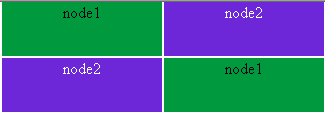
Watch the mosaic test video in the “Demonstration of the SafeKit farm solution” section.
3. Test 1 – Distribution of connections
Steps
- Start the Farm on all the nodes (UP state).
- Open the mosaic from a client workstation.
Expected result: the mosaic displays the names of all the nodes of the Farm, with a different color for each processing node.
This proves that the upstream router or gateway reaches one of the nodes through its MAC address, and that this node correctly distributes the connections.
4. Test 2 – Change of dispatching server
This test checks that the Farm keeps responding when the dispatching server stops.
Steps
- Stop the Farm, i.e. all the nodes in SafeKit.
- Start a single node. This node becomes the dispatching server. → Expected result: the mosaic displays only this node.
- Start the other nodes. → Expected result: the mosaic displays all the nodes.
- Stop the first node, the one acting as dispatching server. → Expected result: the mosaic displays the remaining nodes.
Limitation of this test: a correct result at step 4 does not prove that GARP works. When the Farm module is started on the other nodes (step 3), the virtual IP address is configured on these nodes, which generates messages on the network that may already reroute the virtual IP address / MAC address association. Only tests 3 and 4 really test GARP.
Stopping any other node of the Farm (one that is not the dispatching server) only tests the reconfiguration of the distribution.
5. Test 3 – Checking GARP rerouting with arp -a
Together with test 4, this test really checks GARP: you note the MAC address of the dispatching server before stopping it, then check that the Virtual IP (VIP)/MAC association has changed afterwards.
This test is only possible if the client workstation displaying the mosaic is in the same IP subnet as the Farm.
If there is a router between the client and the Farm, the client’s ARP table does not contain the Virtual IP (VIP), but the address of the gateway used to reach the Farm’s network. In that case, check the ARP table of the router or gateway with the network team.
Steps
- Start the Farm on all the nodes.
- On the client workstation, run
arp -aand note the MAC address associated with the Virtual IP (VIP). It identifies the dispatching server. - Stop the Farm node that has this MAC address.
- Check that the mosaic still works with the remaining nodes.
- Run
arp -aagain to read the new Virtual IP (VIP)/MAC association and identify the new dispatching server.
6. Test 4 – End-to-end check with Wireshark (Windows) or tcpdump (Linux)
You can follow a TCP connection to the Virtual IP (VIP) by capturing packets on the client and on the Farm nodes: with Wireshark on Windows machines, and with tcpdump on Linux machines.
You must look at the MAC (Ethernet) headers of the packets, not just the IP addresses: the kernel filter of the dispatching server distributes the connections by rewriting the destination MAC address of the packets to that of the processing node. The destination IP address remains the Virtual IP (VIP) along the whole path.
What you should observe for the same SYN packet:
| Step | Where to capture packets | Observed MAC addresses |
|---|---|---|
| 1. The client sends to the Virtual IP (VIP) | client | Client MAC → MAC of the dispatching server |
| 2. The dispatching server forwards the connection | dispatching server | Dispatching server MAC → MAC of the processing node |
| 3. The processing node receives | processing node | Dispatching server MAC → node MAC |
| 4. The node responds directly to the client | processing node | Node MAC → client MAC |
| 5. The client receives the response | client | Node MAC → client MAC |
If the client workstation is in a different subnet from the Farm, the “client MAC” seen on the Farm nodes is the MAC address of the gateway (router) connecting the two subnets, not that of the client workstation.
Repeat the capture after stopping the dispatching server (test 2, step 4): step 1 must now show the MAC address of the new dispatching server.
7. Which workstations to test from
The behavior depends on the network path between the client and the Farm. Run tests 1 and 2 from each type of client relevant to your architecture:
| Client location | What the test checks |
|---|---|
| Client in the same subnet as the Farm | Update of the clients’ ARP tables by GARP (test 3 possible) |
| Client in a different subnet (router, gateway, hypervisor virtual network) | GARP handling by the router or gateway |
| Client VM on a hypervisor that also hosts a Farm VM | Behavior of the hypervisor’s virtual switch, which also handles internal switching and routing |
8. Summary of expected results
| Test | Action | Expected result |
|---|---|---|
| 1 | All nodes UP, mosaic | All the nodes appear |
| 2.2 | A single node started | Only this node appears |
| 2.3 | All nodes started | All the nodes appear |
| 2.4 | Dispatching server stopped | The remaining nodes appear, with no lasting interruption |
| 3 | arp -a before and after the stop | The MAC address associated with the Virtual IP (VIP) changes |
| 4 | Wireshark or tcpdump capture before and after the stop | The client sends to the MAC address of the new dispatching server |
9. Troubleshooting
- Load balancing bitmaps: for details on the test and the load balancing bitmaps, see the SafeKit 8.2 User’s Guide, section 4.3.5 “Test TCP load balancing on a virtual IP address”.
- The mosaic no longer responds after the dispatching server stops: GARP is not taken into account by a device on the path (router, gateway, virtual switch). Check GARP handling with your network team.
- Periodic sending of GARP: the
arpreroute="on"attribute of the<vip>section (witharpintervalandarpelapse) sends GARPs regularly on the VIPs. See the User’s Guide, section 13.6.4 “<vip>syntax”. - Diagnosing Virtual IP (VIP) ↔ MAC resolution: see the User’s Guide, section 7.24 “Troubleshooting Virtual IP (VIP) ↔ MAC resolution”, and section 7.15 “Farm module UP (Ready) but problem of load balancing in a Farm”.
Demonstration of the SafeKit farm solution
SafeKit Video: Network Load Balancing and Virtual IP Management (5:03)
In this video, learn how to implement a virtual IP address to provide a single entry point for a 2-node cluster. SafeKit simplifies network load balancing by automatically managing the virtual IP, ensuring that client traffic is distributed across nodes and redirected instantly during a failover. Although this demonstration uses Apache on Windows, the solution works identically with other applications.
Chapters
- 🎬 Architecture: Preparing 2 nodes for a shared Virtual IP (0:13)
- 🎬 Configuration: Setting up the farm.safe module and Virtual IP address (2:20)
- 🎬 Validation: Failover testing and Virtual IP redirection on server crash (2:30)
Step-by-Step Implementation
- 🛠️ Read the guide on setting up a farm.safe cluster on Windows
- 🛠️ Read the guide on setting up a farm.safe cluster on Linux
For more information:
- How a virtual IP address works in high availability clustering?
- For primary/backup failover with a virtual IP address, see Testing the virtual IP address of a SafeKit mirror cluster.